


Have you ever wondered if your phone could help you keep an eye on your glucose levels? The Dexcom app gives you live readings and helpful alerts right on your screen. It connects easily with your device and displays simple graphs that show how your levels change through the day.
Its clear visuals and step-by-step guides make managing diabetes feel more steady and controlled. Ever notice how a small change can brighten your day? Give the app a try and see if it brings a little extra ease to your routine. Take charge of your health today.
Dexcom App: Boost Your Glucose Control Today
The Dexcom app keeps you updated with real-time glucose information right on your phone. It’s available on the App Store and Google Play, so grabbing it is a breeze. Once you open the app, you see your latest readings, trend arrows that show if your levels are rising or falling, and a clear 24-hour graph, all designed to help you stick to your health goals.
A helpful video guide walks you through the sensor setup step by step. It shows you how to properly insert your sensor and pair it with your device via Bluetooth. And before the sensor starts recording solid data, you’ll notice a brief warm-up period. It’s as simple as checking the time on your phone, making the whole process feel effortless.
One of the best parts is the customized notifications. You get alerts if your glucose goes high, low, or even dangerously low soon. There’s an extra video that explains each alert type, so you know exactly what to expect. And if something feels off, the app reminds you to double-check with your blood glucose meter, keeping you safe and well-informed.
Plus, the app has built-in support with FAQs, an interactive chat, and guided help during your first 10 days. All in all, Dexcom brings together easy sensor tracking, smart alerts, and solid support to help you manage your glucose levels confidently every day.
Dexcom App Compatibility & Supported Devices

The Dexcom G7 app works with many smartphones to help you keep track of your glucose data. You can grab it from the Apple App Store or Google Play Store. It runs on iPhones with iOS 15.0 or later and on Android phones with Android 8.0 or later. So, if your phone meets these requirements, you’re ready to enjoy real-time data and helpful alerts right on your device.
For the sensor to share data with your phone, Bluetooth 4.0 or higher is needed. This means your sensor pairs smoothly with your phone, sending you a steady flow of updates to help manage your glucose levels. If ever in doubt about your phone’s compatibility, the official list from Dexcom might give you a hand.
Here are a few key points about the compatibility:
- iPhones with iOS 15.0 or later are good to go.
- Android devices running Android 8.0 or later will work well.
- Bluetooth 4.0 or higher is key for a steady connection.
This means you can feel confident knowing your device is all set to work seamlessly with the Dexcom app, helping you stay on top of your health.
Downloading & Installing the Dexcom G7 App
Start by opening your phone’s app store and typing in Dexcom G7 in the search bar. When you see the app, tap install to add it to your iPhone or Android device. Once you launch the app, it will ask to use Bluetooth (this helps connect the sensor), send notifications, and update in the background. You might see a message like “Allow Bluetooth for sensor connectivity.”
After that, the app will prompt you to sign up. Enter your details to create a new account or log into your existing Dexcom account. The app will then remind you that you need to wait 30 minutes for the sensor to warm up before your first reading appears.
For tips on inserting the sensor and a quick setup review, check out the sensor setup summary elsewhere in this article.
Steps to follow:
- Open your app store and search for Dexcom G7.
- Tap install to download the app.
- Grant the necessary permissions for Bluetooth, notifications, and background refresh.
- Sign up by creating a new account or logging in.
- Allow the 30-minute warm-up period before your readings show up.
Pairing Sensors & Setting Up in the Dexcom App
If you’re getting started with your new sensor, take a moment to check out the full sensor setup guide later in this article. It explains everything, from inserting the sensor and pairing it via Bluetooth, to entering your sensor code, confirming its start time, and waiting through the 30-minute warm-up.
• First, watch the quick video guide to see the proper way to insert the sensor.
• Then, open the Dexcom app and tap on “Start New Sensor.”
• Next, type in your sensor code to kick off the Bluetooth pairing.
• After that, confirm the start time shown in the app and relax through the warm-up period.
• Finally, follow any calibration instructions that pop up along the way.
Navigating the Dexcom App Interface and Alert System
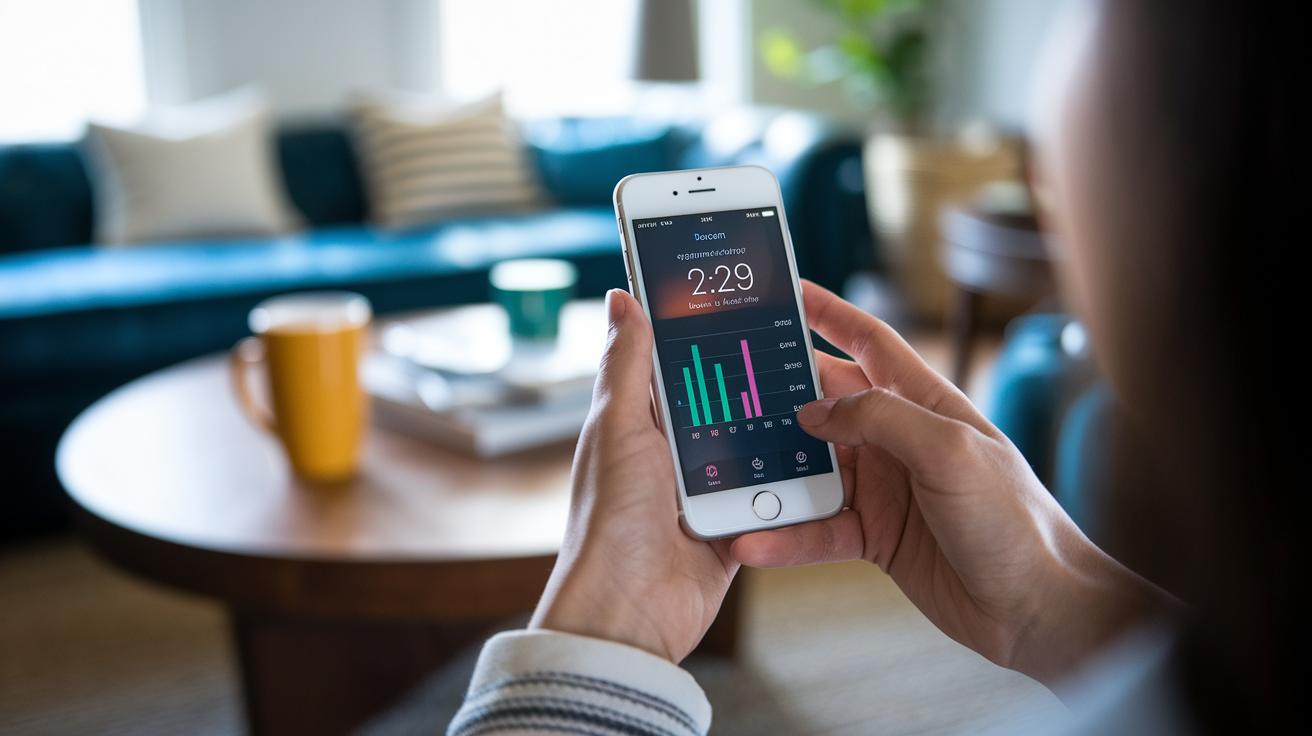
When you fire up the Dexcom app, your current glucose reading pops up right away. You see clear trend arrows that tell you if your levels are climbing or dropping. There's also a 24-hour line graph that gives you a quick look at how things have been going. It’s like having a friendly chat with your health each day.
Scroll down a little, and you'll find more details. You can view past data and check out your average glucose over different time frames. This easy-to-read layout helps you spot patterns that feel both reliable and reassuring. It’s designed to make you feel like you’re getting a warm summary of your daily well-being.
The alert system is another feature that stands out. The app sends you different alerts to keep you in the know. For example, a High Alert pops up when your glucose goes over a set limit. There’s also a Low Alert for when your level drops, plus an Urgent Low Alert if things get really dangerous. And don’t forget the Urgent Low Soon Alert, it warns you before the situation becomes critical.
Inside the app, there’s a quick video that explains each alert. You might see something like, "Ever had your phone buzz with a message like, 'Urgent Low Alert: Check your levels now!'?" This helps you know when to trust the app and when it might be a good idea to double-check with a traditional meter.
The best part? You can customize every notification. Whether you want a gentle reminder or an immediate alert, you can set it up right in the app. This flexibility means the app works around your daily routine, making your healthcare feel simple and secure.
Integrating Dexcom App Data with Clarity & Health Platforms

The Dexcom app works hand in hand with other health tools. It connects to the Dexcom Clarity web portal so your glucose readings are kept safe in the cloud. This means you can look at your past data from days, weeks, or even months. Imagine a neat graph that shows your levels over time, helping you spot patterns without any extra work.
Once your data is in Clarity, you can use its easy sharing options. For example, you can export a report and send it to your healthcare provider, giving them a clear picture of your glucose control. This makes it easier to work together on your health.
| Step | Action |
|---|---|
| 1 | Sync app data to Clarity |
| 2 | Store securely in the cloud |
| 3 | Export data for provider review |
All these features bring personal tracking and professional care together, making it simple to keep an eye on your health with just a glance.
Troubleshooting Common Dexcom App Issues
Sometimes the Dexcom app acts up because of a small oversight. Maybe your Bluetooth is off or the sensor just isn’t close enough. First, make sure Bluetooth is on and your sensor is within 20 feet of your phone.
If you notice readings disappearing, it might be a sensor error or perhaps the sensor has expired. Try turning Bluetooth off and then back on, and restart the app to refresh the connection. Often, a quick restart clears up these temporary glitches.
When that doesn’t work, give re-pairing your sensor a try. Open the app, remove the old sensor connection, and follow the prompts to set up a new link. Sometimes you’ll even see a message like "Re-pair sensor now" to guide you through the steps.
If the alerts seem off or you’re not sure about the readings, it helps to check with a traditional blood glucose meter. This extra step can keep you confident in your data and help you manage your condition better.
And if any of these steps feel confusing, the interactive chat and FAQ sections in the app are there to lend a hand with clear, step-by-step advice.
Comparing Dexcom G6 vs G7 App Functionality
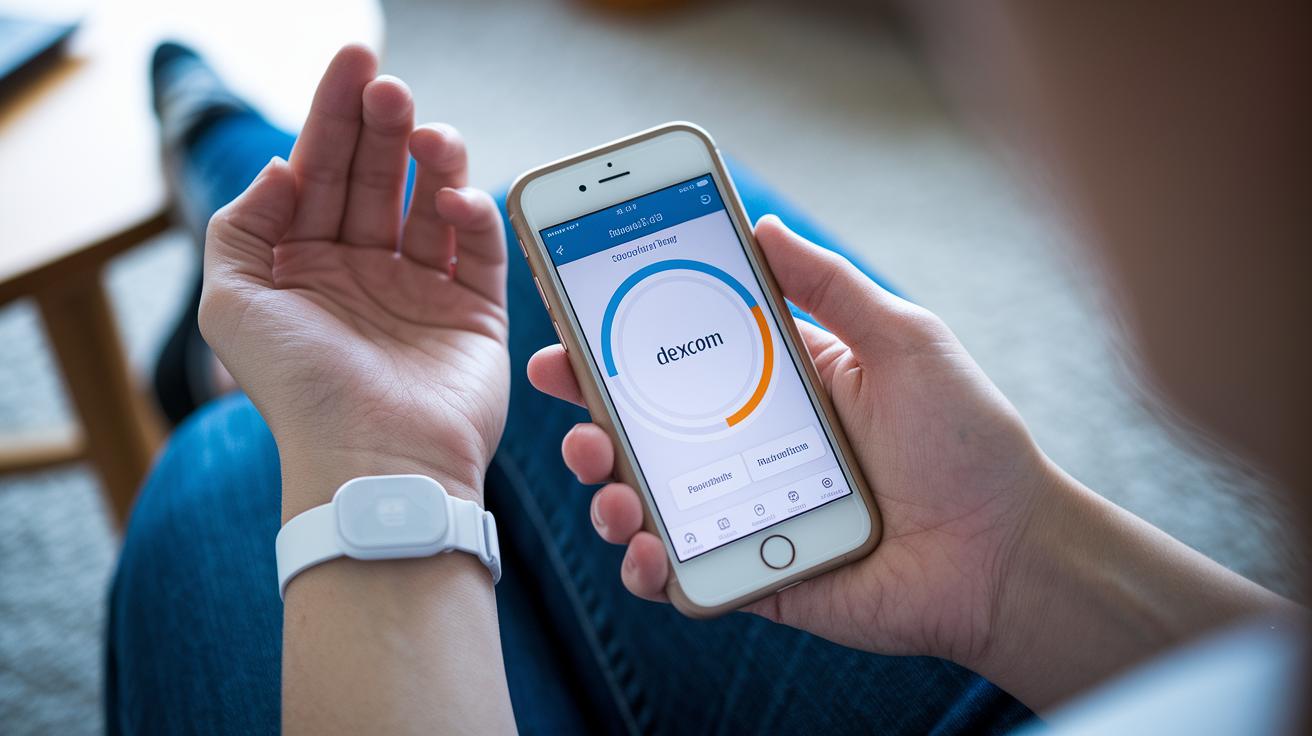
If you’ve used the Dexcom G6, you know it comes in two parts, a sensor and a separate transmitter, which can sometimes feel clunky. The new Dexcom G7 changes the game with a compact, all-in-one sensor that handles everything. And connecting it is a breeze, thanks to direct Bluetooth pairing with your phone.
One of the best upgrades is the warm-up time. With the G6, you had to wait about 2 hours before you could see accurate readings. Now, the G7 only needs 30 minutes, so you can get on with managing your glucose levels faster. Plus, it asks for fewer calibration checks, making your day a bit smoother with more precise data.
The alert system is also improved. The G7 lets you customize notifications more easily and even gives on-body warnings to keep you informed about your glucose changes. Together, these changes mean a cleaner design, better performance, and a more user-friendly experience.
Here are the top improvements:
- Smaller, all-in-one sensor-transmitter combo
- Direct Bluetooth pairing with your phone
- Shorter warm-up period
- Fewer calibration prompts
- Enhanced options for customizing alerts
Best Practices for Optimal Use of the Dexcom App
Keep your app up-to-date so you can enjoy the newest features and protection. When your Dexcom app is running the latest version, it works much better. A steady Bluetooth connection is also key to reliable performance. Think of it like keeping a clear line open between your sensor and phone, so your readings come in without any hiccups.
Here are some simple steps to help you get the best experience:
- Update the Dexcom app whenever new versions come out to enjoy fresh features and stronger security.
- Keep your Bluetooth connection strong by minimizing barriers. Try to keep your phone close to the sensor and limit too many active wireless devices nearby.
- Set up your alert thresholds to match your own glucose goals. This way, you only get notified when it really matters.
- If you get a reading that seems off, double-check it with a blood glucose meter. This extra step ensures your numbers are right.
- Use the in-app chat and FAQ sections if you need help. They’re there to give you quick and friendly support.
Imagine your phone giving you a gentle buzz as a friendly reminder to check your app settings. It might seem like a small thing, but these little adjustments can really make a big difference in how you track your glucose levels every day. Enjoy tweaking your settings and trust that these simple steps will create a smooth and reliable experience with your Dexcom app.
Frequently Asked Questions about the Dexcom App

• How do I update the Dexcom app firmware?
To update your firmware, open the Dexcom app and go to the settings menu. If there’s a new update available, you’ll see a clear prompt, like a message saying "Firmware update available, tap to install." Just follow the on-screen steps, and your sensor readings will stay spot on.
• What if my alerts are not showing?
If your alerts aren’t popping up, first double-check that you’ve turned on notifications in both your phone’s settings and the app itself. Still no alerts? Try restarting the app or even your phone; sometimes a quick reboot is all it takes to refresh the connection.
• How can I share my data with a healthcare provider?
It’s super simple to share your data. In the app, look for a “Share Data” or “Export Report” button. Tap it to either email your glucose summary or print it out, so you can easily give it to your healthcare provider.
• Where do I adjust privacy and security settings?
You can tweak your privacy and security settings right in the app. Head over to the settings menu and tap on “Privacy” or “Security.” There you can decide who gets to see your data and update your password, too.
• Who do I contact for technical support?
If you need a hand, just use the interactive chat in the app or check out the support section for the technical support contact information.
Final Words
In the action, we walked through the dexcom app’s simple setup, from sensor pairing and video guides to customizable alerts. We touched on pairing sensors, managing real-time readings, troubleshooting tips, and even compared G6 and G7 features. The discussion also highlighted how the app works on different devices and integrates with trusted health platforms. All points focus on making health care clear and easy to manage. Enjoy using these insights to keep your health routine smooth and stress-free.
FAQ
What Dexcom apps are available for Android?
The Dexcom app for Android, including versions for both G6 and G7, is available on Google Play. It offers real-time glucose tracking and easily displays your readings on your smart device.
How do I download the Dexcom G7 app?
The Dexcom G7 app can be downloaded from the App Store for iOS or Google Play for Android. After installing, follow the step-by-step guide to set up sensor pairing and permissions.
What is the Dexcom G6 app?
The Dexcom G6 app supports continuous glucose monitoring with the G6 sensor system. It provides real-time data, trend information, and alerts to help you stay informed about your glucose levels.
What is the Dexcom Follow app?
The Dexcom Follow app allows you to share your glucose data with caregivers, family, or friends. It helps create a support network by providing seamless access to your glucose information.
Which Android devices support the Dexcom G7 app?
The Dexcom G7 app is compatible with Android devices running Android 8.0 or later and requires Bluetooth 4.0 or above to connect with the sensor reliably.
Is the Dexcom app free and how much does it cost?
The Dexcom app is free to download. There are no charges for the app itself, though you might have costs related to Dexcom sensors and related services.
How do I get my Dexcom readings on my phone?
The Dexcom app displays your readings by wirelessly transferring data from the sensor to your phone via Bluetooth, showing real-time glucose values and trend graphs.
Is there an app specifically for Dexcom G7?
Yes, the Dexcom G7 app is designed specifically for the G7 system. It features a user-friendly interface, sensor pairing guides, and customizable alerts to support your continuous monitoring.