
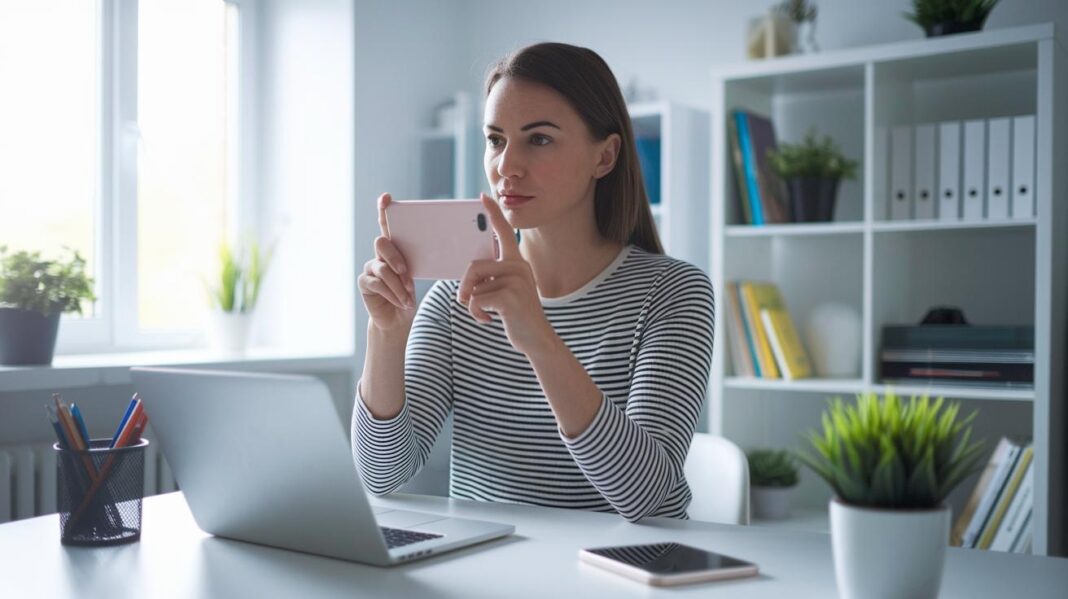

Ever wondered how a tiny tweak in your phone settings can make video calls a lot smoother? A small glitch can throw off your chat and make things feel clumsy.
In this guide, I'll show you some easy steps. First, check your internet speed (this helps you know if your connection is strong). Next, update your apps so they work just right. Then, pick the quietest spot where you can enjoy clear sound and sharp video.
Try these simple smartphone tips, and you might notice your calls getting clearer and friendlier. Good results are just a few easy changes away.
Smartphone Setup for Clear Video Consultations

A strong internet connection is key for smooth video calls. Before your consultation, try a quick test to check your network speed, image, and sound quality. I often run a mock session first to catch any glitches and make sure everything's working right.
Start by checking for system and app updates. Make sure your smartphone has the latest updates so nothing gets in the way of your call. Spend a minute testing your camera and microphone, and consider using a headset for clearer sound.
Next, pick a quiet spot with a simple background that looks a bit like a consultation room. A calm, neat setting not only keeps your privacy intact but also builds trust with your caller. Here’s a simple checklist in HTML:
| Step | Action |
|---|---|
| 1 | Check your internet connection |
| 2 | Test image and sound quality |
| 3 | Update your smartphone system and apps |
| 4 | Choose a quiet, professional space |
| 5 | Use a dedicated headset for clearer audio |
Before the call, send clear instructions to your patients through your EMR/CRM system so they know what to expect. When it's time to begin, introduce yourself, briefly lay out the call’s agenda, and guide the patient along the way, like saying, "Today, we'll review your progress and talk about next steps."
For more tips on setting up a successful video consultation, check out the guide provided.
Optimize Lighting Techniques for Smartphone Video Consultations

Start by picking a room where the light is soft and natural, or use a gentle artificial lamp. Place your light source at your eye level so the brightness is even and shadows are kept to a minimum. For example, you might set a lamp a bit off to the side to highlight your face much like a photographer does for a clear portrait.
Next, give your setup a quick test call. Tweak your phone’s brightness and exposure, or switch on night mode if the light is low. If you're near a window, close the curtains or move a bit to avoid harsh glare from the backlighting.
Then, try out different options like an inexpensive ring light or an adjustable desk lamp to balance the contrast well. Keep an eye on how the room’s overhead lights or the setting sun might change your view, and adjust things as needed.
The goal is simple: set up your lights so you are seen clearly and all your expressions shine through. Experiment with different layouts until you find what works best for you.
Smartphone Tips for Clear Video Consultations: Bright Results
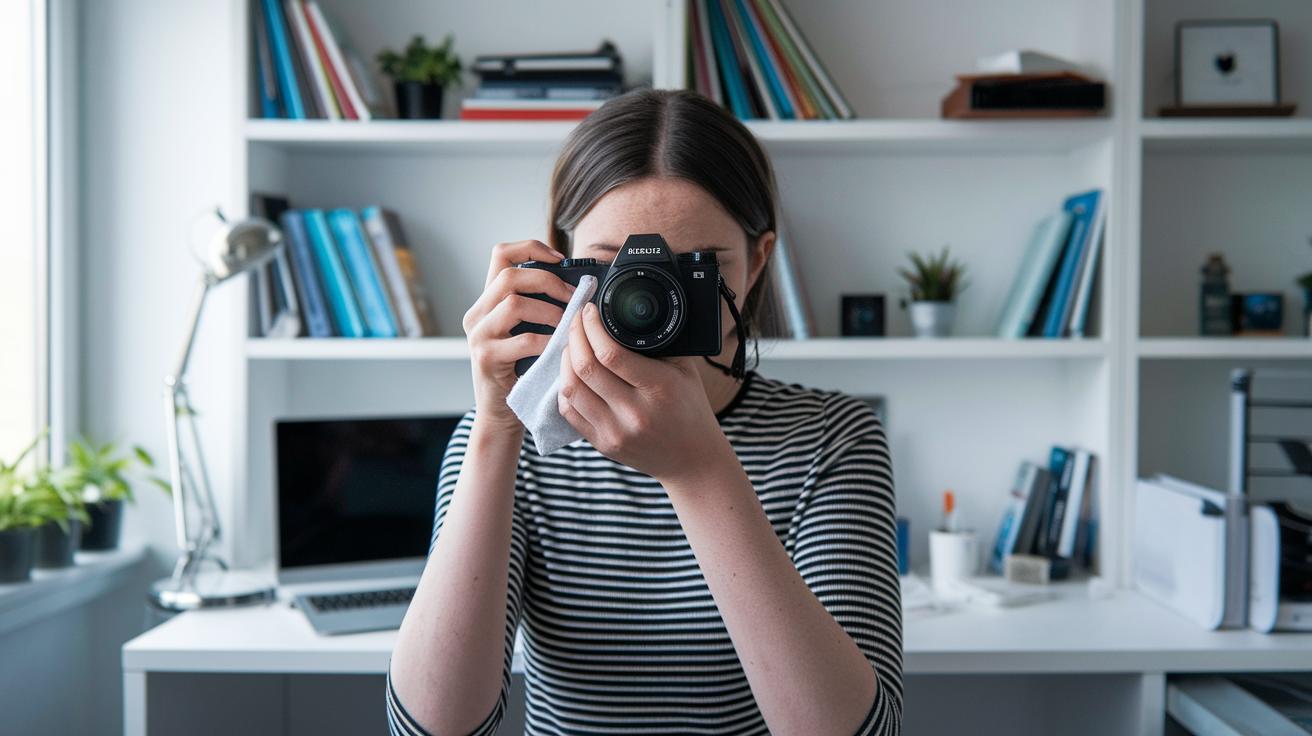
When you're setting up for a video call, a clean camera makes all the difference. Before each call, grab a soft microfiber cloth and gently wipe off any smudges, it’s a quick, simple move that helps your image come through sharper. Make sure your camera is set to its highest resolution with the right aspect ratio for your device. Try this tip: during a quick call, tap on your face to lock in the focus. This manual focus tweak keeps your picture crisp, even if you move around a bit. And really, avoid using digital zoom because it tends to make your image grainy.
Next, dive into your phone's advanced imaging settings. Many smartphones now come with HDR or Pro mode, which means they can adjust to different lighting conditions much better. Spend a minute testing these settings in your usual call spot to see which one gives you the clearest picture. If you're using portrait mode, keep a bit of the background visible so you still give some context to your view. Also, take a moment to check your camera’s calibration settings; this helps stop any weird distortions from sneaking in. A friend of mine mentioned that tweaking the exposure manually made a big difference when the lights were low. All these little adjustments, from setting the right focus to choosing the best resolution, come together to make sure your video calls not only look amazing but also feel more professional.
Ensure Audio Clarity in Smartphone Video Consultations
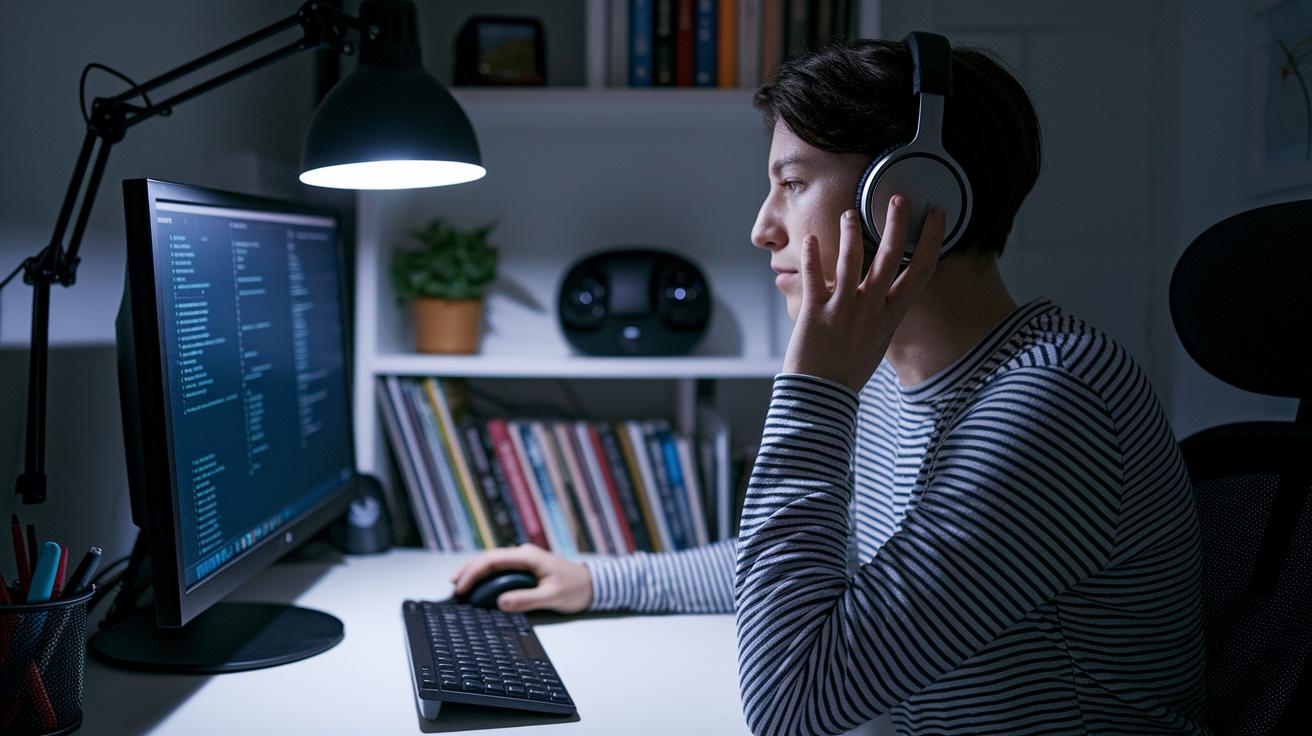
Clear audio makes all the difference during a video consultation. It helps keep the conversation natural and focused. Using a dedicated headset or an external microphone can cut down on background sounds, giving you a crisp, clear voice. Most video apps come with handy features like noise suppression and echo cancellation, make sure to switch these on before your call.
Find a quiet spot away from things like appliances or traffic. Closing windows and doors can really help keep the background noise low. I usually do a quick test by recording a short clip or making a brief call to check that my microphone is working well. And when you’re not speaking, just hit mute to avoid any stray noises.
These small habits not only boost the call quality but also let you concentrate on what truly matters: your patient’s needs. With great audio, every consultation becomes smooth and professional, ensuring that important health details are shared clearly and building trust along the way.
Strengthen Smartphone Connectivity and Stability for Smooth Video Calls

A steady internet connection is a must for smooth video calls. Try to use a 5 GHz Wi-Fi band whenever you can because it tends to have less interference. Aim for at least 5 Mbps for both download and upload speeds. Do a quick speed test before your call to make sure everything is in order.
Keep your smartphone close to your router, or use a range extender if your signal seems weak. Just like repositioning a flashlight to brighten a dark corner, a small change can make a big difference. And don’t forget to close any background apps that might be using up your bandwidth.
Have a backup plan too. If your Wi-Fi starts acting up, switch to mobile data. One clinic in Kansas saw a 30% drop in no-show rates for chronic-care video calls after boosting connectivity. Isn’t it amazing how a little tweak can really improve your day?
Here’s a quick checklist for a strong connection:
- Check your Wi-Fi speed and signal strength.
- Stay near your router or use a range extender.
- Close apps that use up your bandwidth before the call.
Frame and Stabilize Your Smartphone for Professional Video Consultations

Set your smartphone on a tripod or any stable surface that holds it at eye level. This keeps your image still during your call so you always look smooth, even when you move a bit.
Next, try centering your head and shoulders in the view. Leave a little extra space above your head to keep the scene natural. A neat trick is to imagine your screen divided into nine parts and line up your face along those lines. This makes the view balanced and gives your video a professional touch.
Pick a plain background, or opt for a simple virtual one. A clean space helps everyone focus on you during the conversation. Test a few angles to dodge any glare from lights or windows that might make you look washed out. Slight tweaks can really help the light enhance your features without any harsh shadows.
Finally, make sure your entire face fits in the frame. Avoid tilting the phone or cutting off the top of your head. A quick test call with a friend or colleague can be a great way to double-check your setup and ensure your video looks clear and professional.
Troubleshoot Common Issues in Smartphone Video Consultations

When your video call starts acting up, check that your phone's system and video app are up to date. A quick restart can do wonders if the call freezes. Clearing the app cache is another simple trick that many forget but can really boost performance.
It might be a good idea to run a test call with a friend or colleague. This helps catch missing plug-ins before they become a big problem. If you notice low bandwidth, try lowering the resolution in your settings to keep a steady connection. Really, little tweaks like these make a big difference.
If video lags or the audio sounds choppy, look into newer telehealth apps with AI-powered features. These can automatically adjust your settings in real time and give helpful feedback. It’s a neat solution when unexpected glitches pop up.
Below is a quick list to remember:
| Step | Tip |
|---|---|
| 1 | Update your operating system and video app |
| 2 | Restart your device if the call freezes |
| 3 | Clear your app’s cache |
| 4 | Run test calls to spot any missing components |
| 5 | Lower the resolution if your bandwidth is slow |
Before ending your call, take a moment to review the main points and confirm any next steps with your patient. This final check builds trust and makes sure everyone knows what to expect next. Keep these troubleshooting tips in mind, and you'll be ready for any hiccups during your consultation.
Final Words
In the action, you learned how to set up your smartphone for professional video consultations by testing connectivity, updating apps, and preparing the perfect space. We covered adjusting lighting, optimizing camera settings, and sharpening audio. You even got tips on positioning and handling common issues that can pop up during calls. By following these smartphone tips for clear video consultations, the path to seamless digital healthcare feels a lot more reachable and empowering. Enjoy a smooth and clear healthcare experience every time you connect.
FAQ
What are smartphone tips for clear video consultations for both iPhone and Android devices?
The smartphone tips for clear video consultations involve a stable internet connection, running a test call, updating your system and apps, and choosing a quiet, well-lit space to ensure clear audio and video.
How can I optimize lighting for my video consultations?
The lighting tips for video consultations suggest using natural or soft artificial light at eye level, reducing strong backlighting by adjusting curtains, and testing brightness to keep faces clear and evenly lit.
What steps enhance my smartphone camera performance during video calls?
The camera performance tips include cleaning the lens, setting the highest resolution, locking focus on your face, and avoiding digital zoom so that your image remains sharp and clear during consultations.
What measures improve audio clarity in video consultations?
The audio clarity tips recommend using a dedicated headset or external microphone, enabling noise suppression, choosing a quiet environment, and testing microphone levels beforehand to maintain professional sound quality.
How can I strengthen connectivity and stabilize my smartphone for professional video consultations?
The connectivity tips advise using a high-speed Wi-Fi network, positioning near the router or a range extender, closing unnecessary apps, and mounting your phone on a tripod to keep the video call smooth and well-framed.