

Ever had a video call mess up at the worst possible moment? It could be a few small issues that you can fix before your meeting. Try checking your camera and microphone and make sure your internet is steady. In this guide, we’ll walk you through some simple tests to help your video consultation go smoothly. Get ready to create a neat, professional space that makes your appointment feel stress-free.
Comprehensive Video Consultation Checklist: Pre-Session Essentials
Getting ready well is key to a smooth video meeting. Before you connect, take a few minutes to go over this checklist. It helps you avoid interruptions, technical hiccups, and ensures your appointment feels professional. For more guidance, check out preparing for your first video consultation with a doctor.
- Test your device’s camera, microphone, and speakers with a quick trial call.
- Make sure you have the newest version of the telehealth app installed.
- Check that your camera and microphone permissions are turned on.
- Run a network test with the app to confirm your internet connection is strong.
- Click the “Join Call Now” button at your scheduled time.
- Choose a quiet room for your practice call, free from distractions.
- Have your ID card handy for the verification process.
- Pick out comfortable, appropriate clothing that fits what you’d wear at a clinic.
- Gather your medical papers and write down any questions you have.
- Book only one appointment at a time so you can focus fully.
A good setup not only boosts your confidence but also makes your session clear and efficient. When all your tech works well and your room is quiet and organized, you lower the chance of any interruptions during your chat with the doctor. Trying a practice call is smart; it catches any issues ahead of time. And clicking “Join Call Now” on time sets the mood for a smooth virtual visit.
Securing Reliable Internet Connection for Your Video Consultation
Having a steady internet connection makes your video call feel smooth and effortless. A quick test of your network helps you find issues like delays or choppy moments that might interrupt your conversation. Using the network test in your video app is an easy way to check things out before you join a call. It shows you how strong your connection really is and lets you tweak things if needed, like lowering video quality to ease any lag.
- Run a network speed test using your app’s built-in tool.
- Restart your modem and router to clear out temporary problems.
- Try using a wired connection for a more reliable signal.
- Lower your video quality if you start noticing a lag.
- Have a mobile hotspot or a backup network ready just in case.
Planning for a backup network is a smart move when your main connection isn’t up to par. Setting up something like a mobile hotspot can save you from delays when it counts. A few small steps, like testing your bandwidth ahead of time, go a long way toward making sure your connection stays clear and steady when you need it most.
Checking Device Compatibility and Hardware Quality for Video Consultations
Before you start your video chat, take a moment to check that your device is ready. Make sure your camera, microphone, and speakers work well so that your meeting goes smoothly. You might even give your device a quick look to see if the camera and microphone permissions are turned on. If you need more details, you can learn more about how video consultations work for telemedicine.
It also helps to update your video drivers and device firmware, and do a quick check of your audio settings. These simple steps can make a big difference, ensuring your video is clear and your sound is balanced.
| Hardware Component | Check Procedure | Recommended Action |
|---|---|---|
| Camera | Make sure it works and has the right permissions | Update drivers and give the lens a clean wipe |
| Microphone | Test it to ensure clear sound and proper permissions (how do video consultations work for telemedicine) | Adjust your settings and update firmware |
| Speakers | Run an audio test to check sound output | Adjust the volume or try external headphones |
| OS/Browser compatibility | Check for any needed software and system updates | Install the updates or switch to a compatible browser |
Giving yourself a trial call before the actual session is a smart way to make sure both your video and audio are just right.
Setting Up Video Consultation Software and Platform
Before your video visit, it's really important to get your software ready. A neat setup helps you avoid annoying glitches and keeps everything stress-free. Follow these friendly tips to make sure your platform is all set.
First, update your telehealth app or your modern browser to the latest version. Then, turn off any pop-up blockers so that every window and link opens smoothly. Also, enable JavaScript so that all the interactive features can work correctly.
Next, check the meeting URL to be sure you’re heading to the right session room. Give the join link a quick click ahead of time to see that it loads perfectly. Make sure your login details are current and working without a hitch. Have a look at the platform’s quick-start guide too, it’s a simple way to learn the basics and feel more comfortable.
After that, run a quick compatibility test to ensure your device meets the session’s needs. Finally, double-check your notification settings so you don’t miss any reminders about your consultation. And don’t forget to confirm your appointment details in advance so your log-in time matches the “Join Call Now” process.
This little bit of extra care makes your consultation experience smoother and more enjoyable.
Preparing Your Environment: Audio, Lighting, and Background for Video Consultations
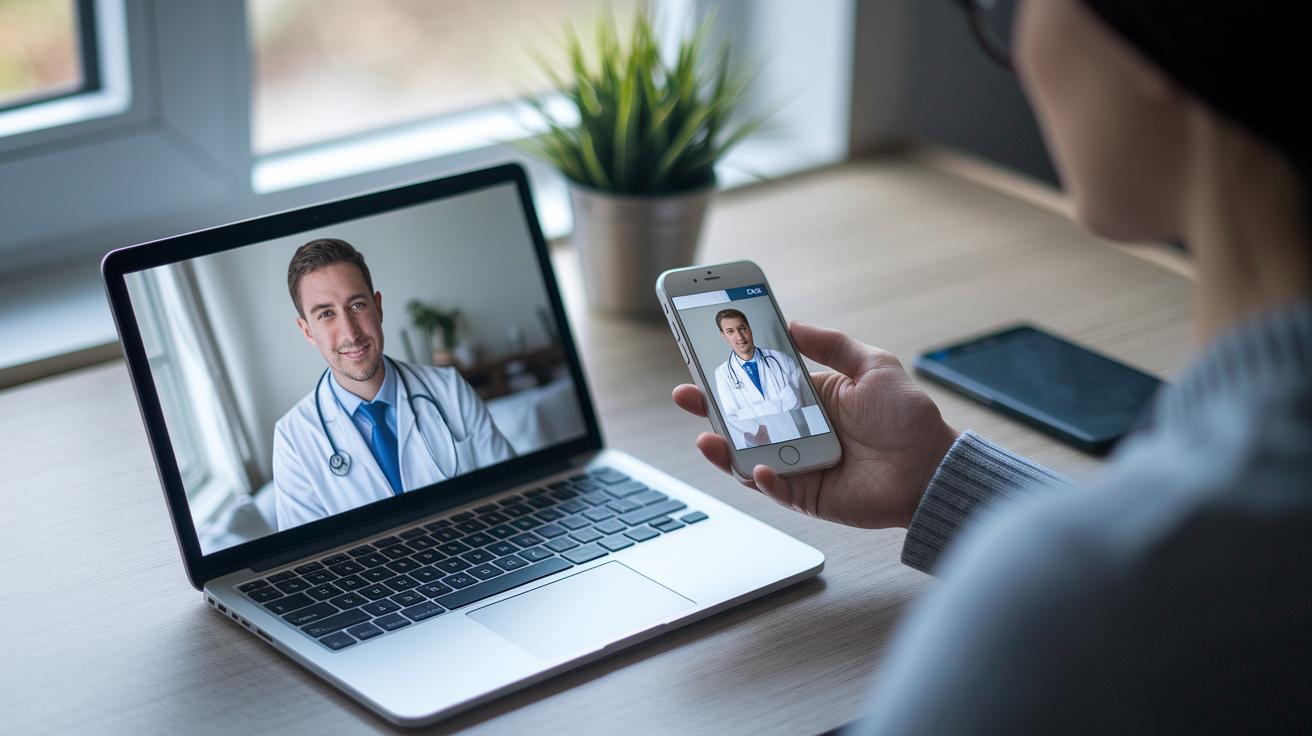
Imagine setting up a video call with your doctor in a calm, neat space, kind of like a quiet little office. It helps if the room doesn’t echo or fill with distracting background noise so you both can really focus on the conversation. Try putting your camera right at eye level for a warm, natural view. Use soft overhead and side lighting to brighten the space gently. And steer clear of strong window light that might wash you out. A simple, tidy wall or background makes your digital visit feel as welcoming as an in-person meeting.
It’s not just about the room, though. Turning off phone notifications and choosing a quiet space shows respect for the session and clears the way for a smooth chat. Wearing the kind of outfit you’d choose for a clinic visit can boost that professional vibe, too. These little steps help build trust and keep the focus right where it matters, on your health.
Here are some quick tips:
- Enjoy soft, balanced lighting that minimizes glare.
- Set your camera at eye level for a friendly, personal view.
- Choose a quiet room and switch off those notifications.
- Keep your background simple and clutter-free.
- Dress in smart, clinic-like clothing.
- Ensure the audio space is free of disruptive noise.
Privacy Protocols and Data Security for Video Consultation Sessions

When you jump on a video consultation, locking down your privacy keeps your health details safe and builds trust with your provider. It’s all about making sure your conversations stay between you and your doctor so you can relax and focus on your care.
Make sure your telehealth platform uses end-to-end encryption (that means your data is scrambled so only you and your doctor can read it).
Check your privacy settings before you join the session to keep unwanted guests at bay.
Stick to using your secure Wi-Fi or mobile data instead of public networks to lower the risk of data breaches.
Double-check that no unauthorized viewers can sneak into your call by ensuring your room is secure.
And don’t forget to verify that the session link is genuine so you’re not connecting to a fake or compromised meeting.
Before the consultation, take a moment to confirm your identity and make sure the session link is legit.
Troubleshooting Guidelines and Support Plan for Video Consultation
If your video call starts lagging, don’t panic. Instead, switch to just audio and use your backup device if needed. This way, you stay connected without going over the same steps again.
• When the video gets choppy, move to audio-only right away. For example, “When the video froze, I switched to audio mode and kept the conversation going.”
• Always have a spare device or mobile hotspot nearby. For instance, “I keep an extra tablet on hand just in case my phone acts up.”
• Once you switch, check that your audio is clear so others can hear you properly.
• Know your app’s steps for reconnecting so you can jump back in quickly if the call drops.
• Keep an eye on your app’s status for any sudden signal loss.
• And if the connection fails completely, have a backup plan ready, like switching to a phone call.
Following these clear steps helps you stay on track during your consultation, making unexpected hiccups much easier to handle.
Final Words
In the action, this post broke down essential steps, from testing your internet speed and checking device functionality to setting up your video platform and preparing a distraction-free space. It also covered privacy protocols and troubleshooting tips to keep issues at bay.
Taking a few moments for what to check before joining a video consultation session can make a big difference. Ready for a smooth, secure, and clear video call? Let's keep advancing our health with confidence and ease.
FAQ
How do I set up telehealth on my Android phone, iPhone, or computer?
Setting up telehealth on your Android phone, iPhone, or computer means downloading the telehealth app or visiting the provider’s website, creating your account, and following the on-screen prompts. Make sure your device meets the system requirements.
How do I receive a telehealth call or join a virtual visit from my phone?
Receiving a telehealth call or joining a virtual visit from your phone means keeping your device ready, launching your telehealth app when alerted, and tapping the “Join Call Now” button. Check your audio and video settings ahead of time.
How do telehealth appointments work and what can I expect during an online consultation?
Telehealth appointments work by securely connecting you with your provider over a video call. During your online consultation, you can expect a one-on-one session where your concerns are discussed and your care plan is reviewed in a private setting.
How do I prepare for a virtual consult or video visit?
Preparing for a virtual consult or video visit means testing your internet connection, device hardware, and software before your appointment. Choose a quiet space with good lighting and follow any pre-session instructions from your healthcare provider.
What do I need for a video consultation?
Having what you need for a video consultation includes a reliable internet connection, a working camera and microphone, and a quiet, well-lit environment. It also helps to have your identification ready and run a practice call before your appointment.