


Have you ever had a video call that just didn’t feel right? Even a small tech hiccup can mess with an important health chat. Getting ready beforehand can make all the difference. First, gather your medical papers in one easy spot. Then, run a quick check on your internet and set up your space so it feels peaceful. This way, you’re all set to talk freely about your health without any interruptions.
Core Setup Checklist for a Successful Video Consultation Appointment
Getting ready ahead of time makes your video call run smoothly. When you plan before the appointment, you feel more at ease talking about your health, and your provider has the right details to help you. A simple checklist that covers your documents, symptoms, and tech setup makes sure you meet all the requirements easily.
Taking just a few minutes to prepare helps avoid glitches during your call. It also makes you feel more comfortable and can lead to a more accurate diagnosis. Whether you're gathering lab results, checking your internet speed, or setting up a quiet, bright room, every step counts.
- Gather your important medical papers and save them in one folder on your device.
- Write down a list of your current symptoms and any past health issues.
- Jot down questions to ask so that none of your concerns get missed.
- Organize your health history, lab results, and exam findings to help with the diagnosis.
- Test your internet connection and aim for at least a 5 Mbps upload speed for clear streaming.
- Check your camera and wipe the lens for the best picture.
- Make sure your microphone works well, or use a headset with a built-in mic.
- Pick a quiet room with a simple, tidy background.
- Set up your lighting so your face is evenly lit and free from harsh backlights.
- Log into your video call platform at least five minutes early.
Logging in a bit early gives you time to fix any surprises that might pop up before your consultation.
Optimizing Technology for Video Consultation Success

Make sure your internet is steady so your video call goes smoothly. Give your connection a quick speed check using an online tool, you'll need at least 5 Mbps upload for a clear call. If you're on Wi‑Fi, be aware it might lag sometimes. Try a wired Ethernet connection for a more reliable signal. Also, close any apps that use lots of bandwidth before your call so you can focus without any interruptions.
Connectivity Optimization
Before your call, check your internet speed with a trusted tool and aim for a minimum of 5 Mbps upload. If you can, use a wired Ethernet connection because it's usually steadier than Wi‑Fi. Stopping heavy downloads or streaming right before your meeting can really help keep your video call smooth and distraction-free.
Audio Setup
Good sound is key to a great video call. Use a headset with a noise-canceling microphone to block out background noise. Take a moment to check your system’s audio settings and volume levels. A quick test before your appointment will boost your confidence, ensuring everyone can hear you clearly.
Camera Configuration
Your camera’s angle is important. Position it at eye level so you look engaged, and adjust it at a distance that naturally frames your head and shoulders. Set your device’s resolution to at least 720p, and give your camera lens a quick clean for the best, crisp image quality.
Crafting a Professional Environment for Video Consultations: Lighting and Background Setup
Lighting Arrangement
When you set up your call, try positioning yourself so that soft natural light from a window shines gently on your face. It makes you look warm and friendly. If the light is a bit uneven, add a soft LED lamp at a 45° angle to ease any shadows. Fun fact: natural light not only brightens your face, it keeps your look inviting.
Background Selection
Pick a simple, uncluttered background that keeps the spotlight on you. A plain wall or a neat room works wonders, free of busy patterns or extra items. It might surprise you how a tidy setting makes your video call seem just as polished as a professional shoot.
Environment Control
Find a quiet spot in your home and let others know you’re on a call to avoid interruptions. Mute nearby devices to stay focused. Believe it or not, a calm space can transform an ordinary call into a smooth, distraction-free conversation.
Establishing Professional Presence in Video Consultations with Digital Etiquette

Start your session with a warm introduction. Tell everyone your name and role in a friendly way. Explain what you'll cover and how long the chat will be. For example, you can say, "Hi, I’m Dr. Adams, and in our 20-minute session, we’ll review your updates and plan our next steps." This helps your patient settle in right away.
During your call, try looking straight into the camera instead of the screen. This little habit makes it seem like you’re really listening. A quick nod or a brief “I see” or “Right” can make the conversation feel relaxed and engaging, just like an in-person meeting.
As your session wraps up, take a moment to go over the main points you discussed. Ask if there are any last questions. You might say, "To recap, we discussed your symptoms and treatment plan. Do you have any questions?" This friendly recap shows you care and leaves a positive impression.
Troubleshooting Steps and Contingency Planning for Video Consultations
Before your appointment, it's a good idea to run a complete test about 24 hours ahead. This little trial run lets you check if your camera, microphone, and internet are all working right. It takes the pressure off when the time comes to connect, and you get a chance to fix any issues without feeling rushed.
- Try out your entire setup a day ahead. Check everything from your device to your connection.
- Keep a backup mobile device with the meeting app already set up. That way, if one device fails, you can easily switch to the other.
- If your connection drops during the call, switch to a cellular hotspot or give the other person a quick phone call so you can keep chatting.
- Should you run into any unexpected errors, restart the app and clear its cache to see if that fixes it.
Take a moment to jot down any glitches or error messages you notice during your test. This simple step can really help if you need to call tech support later. Spending a bit of extra time on these checks builds your confidence with your digital tools and helps make sure your health consultation runs smoothly.
Effective Scheduling and Reminder Practices for Video Consultation Appointments
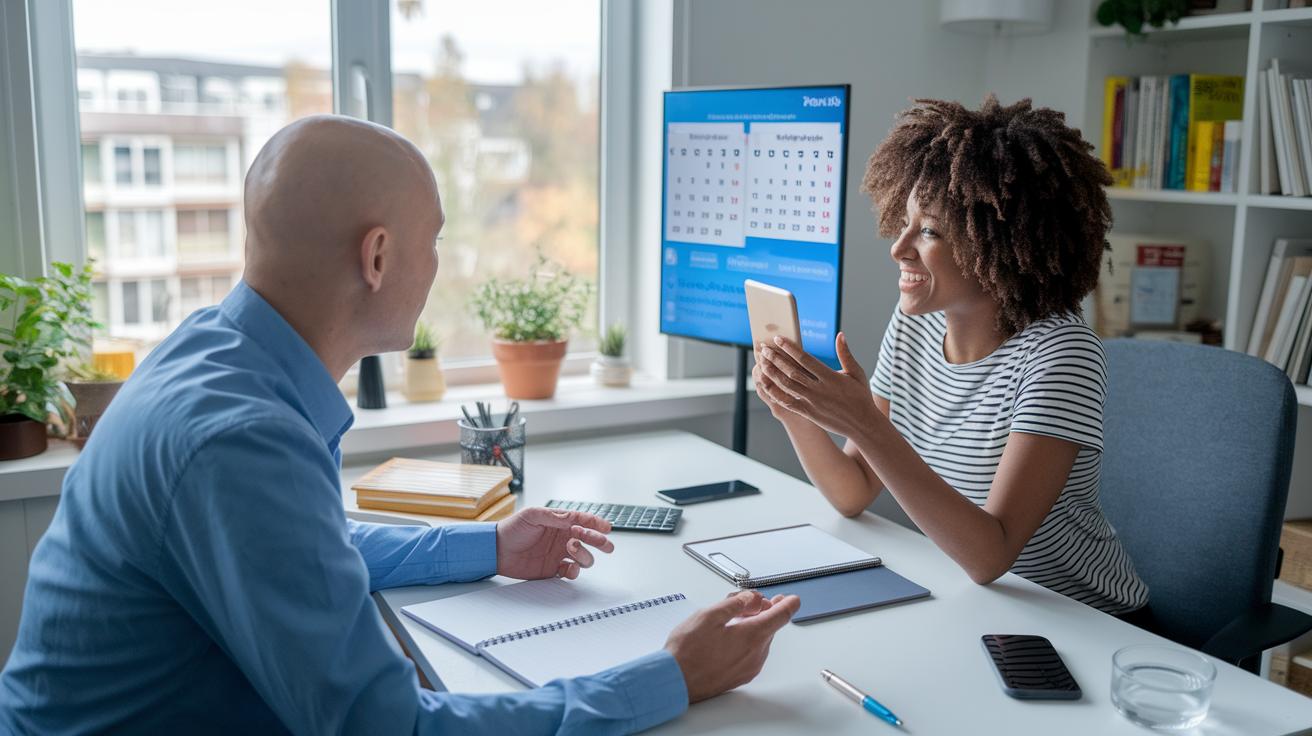
Automated appointment reminders really help cut down on no-shows and make sure everyone is prepped for the call. Using email and SMS notifications keeps things on track. It's a smart idea to ask for a confirmation when booking and add prompts in your reminders. This keeps everyone in the loop about the call time and details without any last-minute surprises.
Try sending the meeting link and clear joining steps 24 hours and then again 1 hour before the appointment. Many people appreciate a quick, easy guide on how to join, so nothing feels confusing. With these straightforward reminders, both you and your patient can focus on having a smooth, productive video consultation.
Ensuring Privacy and Compliance in Video Consultations
Start by choosing a telehealth system that uses full encryption to keep your data safe. This means your health details are locked up tight as they travel between devices, like storing valuables in a super-secure safe. It’s a smart way to start your digital journey without worry.
Next, keep control over who joins your video call. Use password-protected sessions and set up a virtual waiting room so you decide who gets in. Think of it like having a security guard at the door who only lets in approved guests, ensuring your conversation stays private.
Finally, store your consultation notes and recordings according to HIPAA or your local rules. Regularly update your passwords and review your access logs to keep everything secure. This extra care helps protect your digital records and gives you peace of mind during every virtual meeting.
Final Words
In the action, the guide walked you through everything from checking tech requirements and preparing your documents to setting up the perfect lighting and background. We covered session setup guidelines, digital etiquette, and even troubleshooting steps. Remember these setup tips for a successful video consultation appointment: organize your details, test your connection, and choose a private, well-lit space. With these easy steps, you’re ready to experience a smooth, brilliant video consultation session that puts your care first. Enjoy every step of your digital health experience!
FAQ
Frequently Asked Questions
Q: What are the setup tips for a successful video consultation appointment (Tele/ATI)?
A: The setup tips for a successful video consultation appointment involve gathering your medical documents, testing your internet, and preparing your device’s camera and mic. Follow a checklist to create a smooth, professional session.
Q: How do telehealth appointments work and how do you use telehealth as a patient?
A: The process of telehealth appointments works by connecting you with a provider via video call. As a patient, you need to prepare your health records, test your equipment, and follow the platform’s joining instructions.
Q: How do you do telehealth on a phone, including Android and iPhone?
A: The method for doing telehealth on a phone involves installing the required app, signing into your account, and testing your camera and audio. This ensures you have clear communication during your digital consultation.
Q: What are the five basic requirements for telemedicine?
A: The five basic requirements for telemedicine include a stable internet connection, clear audio and video equipment, a private space, proper device readiness, and having your health records easily accessible before the call.
Q: How do you do a video consultation and start a teleconsultation?
A: The process for starting a video consultation involves preparing your health information, testing your tech setup, and logging into the platform a few minutes early. This guarantees a relaxed and seamless start to your teleconsultation.
Q: What’s the difference between telehealth and virtual appointments?
A: The difference is that telehealth covers a broad range of remote healthcare services, while virtual appointments specifically refer to scheduled video calls. Both aim to provide care without the need for in-person visits.