
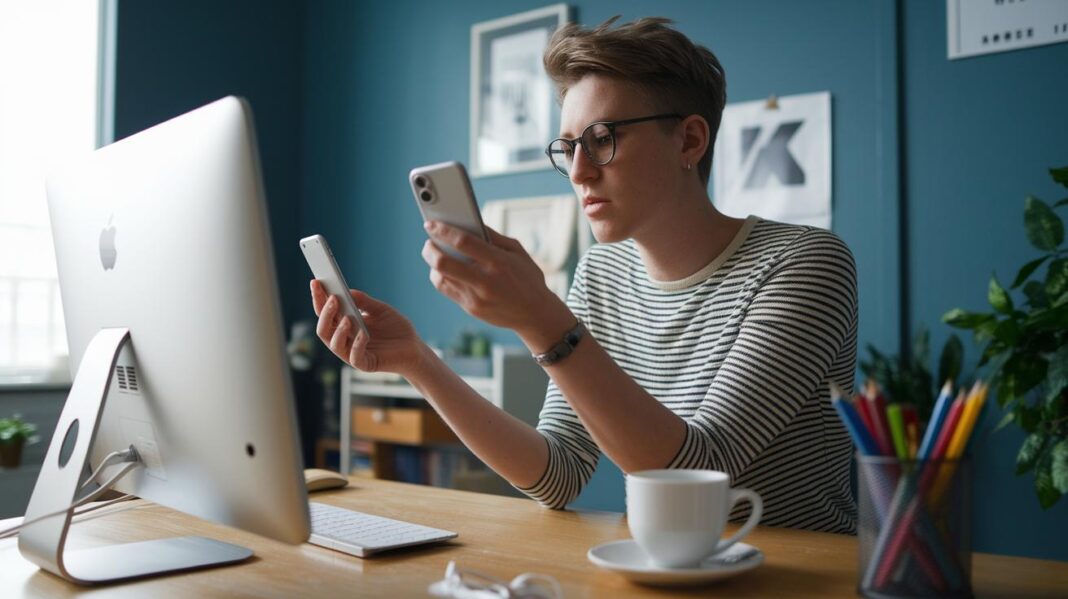

Ever notice how a video call can feel dull when the lighting and sound aren’t just right? A tiny change in your environment might be all it takes to bring a natural glow to your face and let your voice ring clear. Soft light makes you look warm and inviting, and clear sound lets your words flow smoothly, almost like chatting with a friend. With just a few simple tweaks, your online meetings can feel more engaging and feel truly professional. Stick around, and let’s explore how these small adjustments could add a spark to your video consultations.
Mastering lighting and sound optimization for video consultations

Ever noticed how a simple tweak in your lighting can make you look more awake and engaged? Good lighting fills your face with a soft, natural glow so you come across as fresh and ready. At the same time, clear sound lets your voice shine, making every conversation feel personal and professional.
Before your next call, take a few minutes to set up your space. Position yourself facing a window so you soak in natural light. Add a diffused lamp here and there to soften any harsh shadows. Test your microphone (it helps to use noise suppression features) and check that your internet is steady. These little steps go a long way in making you feel confident and approachable on screen.
Here are some benefits of setting up right:
- You look your best.
- People see you as trustworthy.
- Conversations stay clear.
- Fatigue from poor visuals fades away.
- Your overall professional image stays consistent.
So, next time you connect for a video consultation, remember to spend 5–10 minutes on your setup. A face lit by soft daylight, combined with gentle artificial lights, and clear audio can transform your call. It’s all about keeping things simple, effective, and warm, just like a friendly chat about your well-being.
Lighting fundamentals for video consultation quality

When you're on a video call, light makes all the difference. Natural light coming through a window softly brightens your face, letting your true colors shine in a warm, friendly way. It gives your video a gentle, honest feel without harsh shadows. But sometimes, bright sunlight can overwhelm you, so a quick fix like using a sheer curtain or angled blinds can keep things balanced.
Artificial lighting is just as important, especially when your room doesn’t have much natural light. A simple 3-point lighting setup works wonders. Start with a main light at a 45° angle to highlight your face, add a fill light on the opposite side to ease shadows, and finish with a backlight to separate you from your background. Setting these lights to a daylight tone (about 6500K) mimics the clean light of a sunny room. Spending five to ten minutes to tweak your setup before a call really shows in your video quality.
| Step | Description |
|---|---|
| 1 | Face a window to benefit from natural light |
| 2 | Use diffusers to soften bright sunlight |
| 3 | Arrange key, fill, and back lights for balance |
| 4 | Adjust the color temperature to mimic daylight |
| 5 | Do a quick test before your call |
The great thing is, you can set this up no matter your room size or budget. Whether you're in a small home office or a larger space, mixing natural light with a few extra lights means you look your best every time.
Enhancing audio clarity and acoustics for video consultations
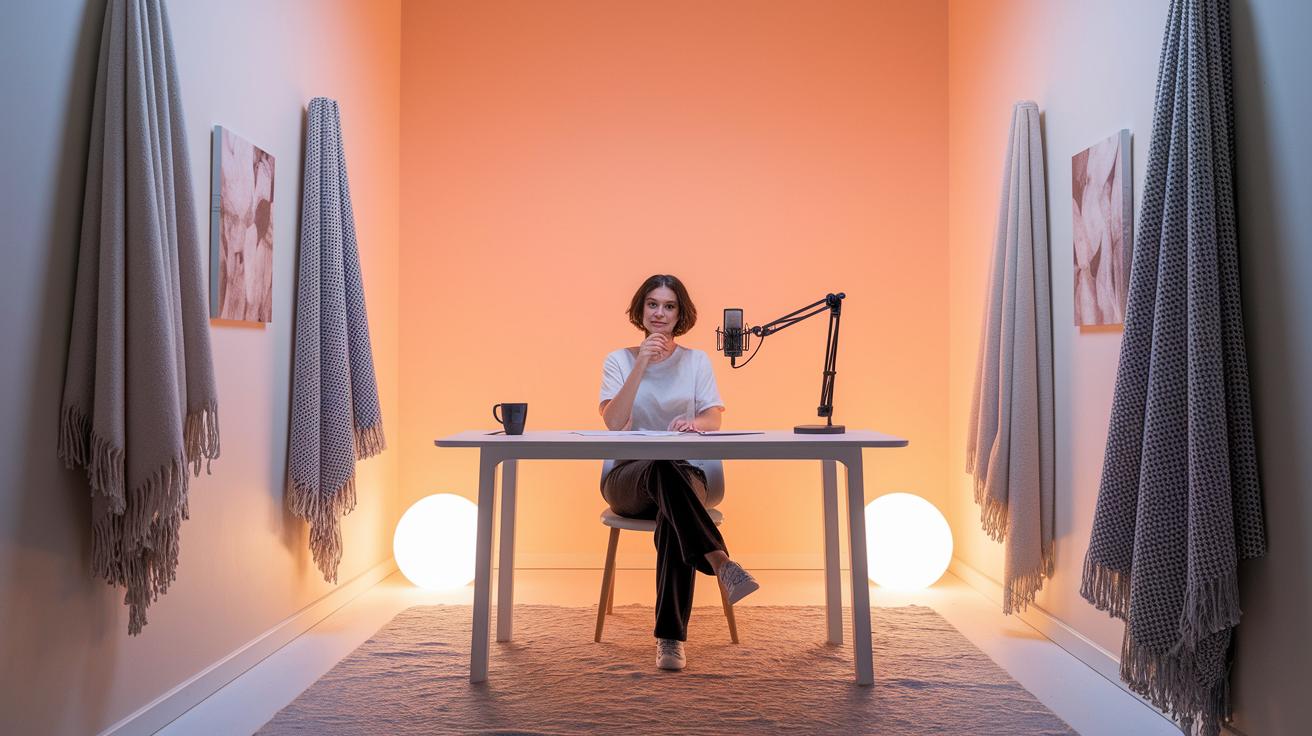
Good sound quality matters just as much as clear visuals. Bad audio can mix up your message and even make you seem less professional. Hard surfaces might bounce sound around, causing echoes that disrupt a smooth conversation. Try soft items like rugs, curtains, or even portable panels to help soak up unwanted noise. These small fixes can really boost the quality of your calls.
Acoustic Treatment Basics
Give your room a little sound makeover with items that soften noise. A soft rug under your desk, a few blankets on the walls, or some light curtains can cut down on echo. These simple touches help your voice come through warm and clear, making your conversation sound natural and friendly.
Software Noise Reduction
Turn on noise suppression and echo cancellation settings in your video app. These tools help filter out extra background sounds so your voice stays clear. It’s a good idea to try out these options quick before your call to make sure everything works perfectly.
Also, keep your microphone about 6 to 12 inches from your mouth and use one that picks up sound mostly from one direction. Adjust the mic gain to avoid any distortion, and do a quick test recording to check your levels. This little routine not only ensures your audio is crisp but also helps you feel comfortable with the setup.
Optimizing lighting and sound for video consultation: Brilliance

When it comes to video consultations, choosing the right gear really matters. You want equipment that fits your budget and makes you look great. Try out simple options like ring lights, LED panels, or adjustable desk lamps to add a soft, natural glow to your room. Many of these lights mimic natural daylight (about 6500K), so your video always has a warm, vibrant feel. And when you pair these with popular USB microphones such as the Blue Yeti or Samson Q2U, or even handy lapel mics with a foam windscreen, you get clear, professional sound that keeps your voice engaging.
| Device Type | Model Examples | Key Features | Approx. Cost |
|---|---|---|---|
| Ring Light | Generic Ring Light | Adjustable brightness, 6500K LED | $20–$150 |
| Panel Light | Portable LED Panel | Compact design, diffused light | $20–$150 |
| USB Microphone | Blue Yeti, Samson Q2U | High-quality audio, plug-and-play | $30–$120 |
| Lapel Microphone | Clip-on Mics | Compact, comes with foam windscreen | $30–$120 |
Pairing your lighting and audio gadgets creates a balanced setup that really shows off your professional side. For instance, using a portable LED light at 6500K with an external microphone makes both your image and voice shine, even on the go. Whether you're at home or out and about, the right tools let you present confidently every time you jump on a video consultation.
Optimal placement and configuration of lights and microphones

When you join a virtual consult, keep your webcam at eye level. It helps your appearance look natural and avoids any weird camera angles.
Lighting Positioning
Set your key light so that it comes from about a 45° angle above your eyes. This gentle light highlights your face without being too harsh. Then, add a fill light on the opposite side to ease any shadows. A soft backlight behind you gives a bit of depth without making the scene too bright. Think of it like the mild glow of early morning sunshine, gently contouring your features for a clear look.
Microphone Placement
Place your microphone around 6–12 inches away from your mouth. Tilt it off by about 45° to cut down on those sudden air puffs when you speak. Using a directional mic helps pick up your voice while keeping background noise at bay. Do a quick test recording to ensure your voice comes through clean and balanced.
Finally, blend your lighting and microphone setups to enjoy a video that feels both crisp and welcoming.
Troubleshooting lighting and sound issues in video consultations

If your video call isn’t looking or sounding great, don’t worry, you can fix it with a quick check before your call starts. Take a few minutes to run through a simple checklist for your camera, lights, mic, and internet. This little routine helps lower surprises and keeps your chat running smoothly.
Try these easy steps:
- Make a test call
- Check all your hardware connections
- Adjust your device settings
- Shift your light and mic to better spots
- Turn on any backup equipment you have
Following these steps gives you a boost of confidence, showing that even sudden glitches can be sorted out quickly. You can tweak brightness or color with either the built-in dials or the software settings, move your mic to cut down on echoes, and keep spare cables or batteries handy. Plus, knowing how to quickly reset settings or restart a device means you’re ready to face any issues calmly.
For a deeper dive into technical tips, check out this link for more insights: video consultation troubleshooting common technical issues.
Final Words
In the action, we dove into the tricks to boost your video consultation quality, focusing on both clear visuals and crisp audio. Check out these benefits:
• Enhanced appearance
• Boosted credibility
• Clear communication
• Reduced fatigue
• Consistent branding
We shared easy steps like pre-call adjustments and multi-source lighting checks, all while emphasizing optimizing lighting and sound for video consultation. Every tip here helps you set up a smooth, confident call, turning routine check-ins into a pleasant experience with quality you can feel.
FAQ
What does optimizing lighting and sound for video consultations involve?
Optimizing lighting and sound means setting up bright, balanced lights and clear audio to boost your professional look during video consultations and avoid miscommunications.
How do I improve lighting for video calls and videos?
Improving lighting involves using both natural and soft artificial light sources to reduce harsh shadows and give you a clear, friendly appearance on screen.
How do professionals light for videos?
Professionals use a three-point lighting setup with a key light, a fill light, and a backlight to achieve balanced illumination that flatters your features and minimizes shadows.
What is the most flattering lighting for Zoom meetings and webcam calls?
Flattering lighting features soft, diffused brightness from daylight bulbs or adjustable LED panels, which enhances your natural tones and keeps your video clear and inviting.
How can desk lamps or face lights improve video call quality?
Desk lamps and face lights provide targeted illumination that brightens your face evenly, reducing shadows and helping you appear alert and professional during calls.
Why is clear audio important in video consultations?
Clear audio builds credibility and prevents miscommunications. Using proper mic placement and noise suppression settings ensures you sound as professional as you look.
What preparation steps help ensure optimal lighting and sound before a call?
Spending 5–10 minutes testing and adjusting your lighting and audio settings before a call helps you look polished and hear clearly, boosting your overall presentation.
Where can I find more tips on troubleshooting video consultation issues?
More detailed troubleshooting steps, like running test calls and verifying connections, can be found in our guide on video consultation troubleshooting common technical issues: https://ourmobilehealth.com?p=241.