


Have you ever wondered how some clinics always seem to run so smoothly? Video consultations are changing the game by helping patients have simpler and quicker visits.
Clinics can get started in just a few easy steps. First, they set up telehealth profiles (that is, online accounts that keep your health information safe). Next, they check that the video calls are clear. This simple process saves time and keeps patients happy.
In this post, you'll see how setting up secure systems and running quick test calls can lead to friendly, efficient sessions. Smart tech can turn daily clinic tasks into a smooth, satisfying experience for everyone.
Key Steps in the Video Consultation Workflow for Clinics
Start by setting up your telehealth profile in your practice management system. This step lays the groundwork for how you interact with patients and keep track of their details. Think of it like opening a new book, I set up my profile and watched patient data fall neatly into place.
Next, get your hardware and space ready. Use an HD camera and a clear microphone, and arrange your room with a simple, neutral background. Adjust the camera to eye level so it feels like you're having a real, friendly chat. I remember tweaking my camera until my face was perfectly centered with a calm backdrop.
Then, turn on the video consultation feature and link it with your EHR/EMR system. This makes sure all patient records are right at hand. After that, set your diary and choose appointment types that reflect your clinic’s routine.
Now, put in place secure online intake forms and simple triage questions. These forms work like an easy checklist that speeds up patient check-ins. Also, schedule automatic reminders to go out 48 to 72 hours before and again 1 to 2 hours before the appointment. I once had a patient tell me that a gentle SMS buzz reminded them perfectly and cut down on missed sessions.
Before any live session, run a quick test call. Check your browser and device permissions and make sure your connection is strong. This little test helps catch any glitches upfront.
During the live session, connect over a 2-way video call, and if needed, switch to audio-only. This is when real conversations happen, much like talking in a cozy waiting room.
As soon as the session wraps up, quickly document what happened using e-notes templates like structured DAP notes. Last, finish up billing with Stripe integration and review follow-up analytics to keep an eye on performance and patient satisfaction.
- Create telehealth profile
- Set up hardware & environment
- Enable video feature and integrate with EHR/EMR
- Configure diary and appointment types
- Deploy online intake forms and triage questions
- Schedule automated reminders
- Run a test call
- Conduct live video session
- Document using e-notes templates
- Process billing with Stripe integration
Technology and Integration in Video Consultation Workflows

Start by setting up with the basics: a sharp HD webcam, a microphone that shuts out background noise, and steady broadband in a quiet, well-lit spot. This reliable foundation makes every video call run smoothly.
Next, ensure that your digital tools work together perfectly. Use API-based EHR/EMR syncing so patient records update automatically right after the call. Add VOIP or call-center features to handle calls at multiple clinic sites without any hiccups. And use the built-in diagnostic tools to check for connection issues in real time, no extra test call needed. For instance, before a session, the system runs a quick check that instantly spots any connectivity problems.
| Advanced Integration Technique | Description |
|---|---|
| API-based EHR/EMR Sync | Patient records update automatically after each session |
| VOIP/Call-Center Module | Manages calls seamlessly across multiple sites |
| Built-in Diagnostic Tools | Runs real-time system checks without extra test calls |
If you're curious about the basics of video call operations for telemedicine, check out the guide here: "how do video consultations work for telemedicine" (https://ourmobilehealth.com?p=216).
Scheduling and Patient Onboarding for Clinic Video Consultations
Booking and onboarding can be made simple, putting more control in your patients' hands. With a self-service booking portal, patients can pick a time that works for them, choose different appointment lengths, or select from various consultation types. It’s like picking your favorite meal from a clear, easy menu, fewer mix-ups all around.
Using secure online forms lets you collect important details ahead of time. These forms gather medical history, capture consent, and ask basic triage questions like, "What brings you in today?" This means when patients arrive, the check-in process is already speeding along.
Another neat trick is automated reminders. Friendly texts or emails go out 48 to 72 hours before the visit, and then again 1 to 2 hours before. Imagine receiving a comforting message that says, "Your appointment is coming up soon!" Plus, patients have a chance to confirm their attendance. For more details, see setup tips for a successful video consultation appointment.
A virtual waiting room wraps it all up by giving real-time updates on queue status, just like a friendly front-desk experience.
- Self-service booking portal
- Secure online intake forms
- Automated smart reminders
- Virtual waiting room
Compliance and Security in Clinic Video Consultations
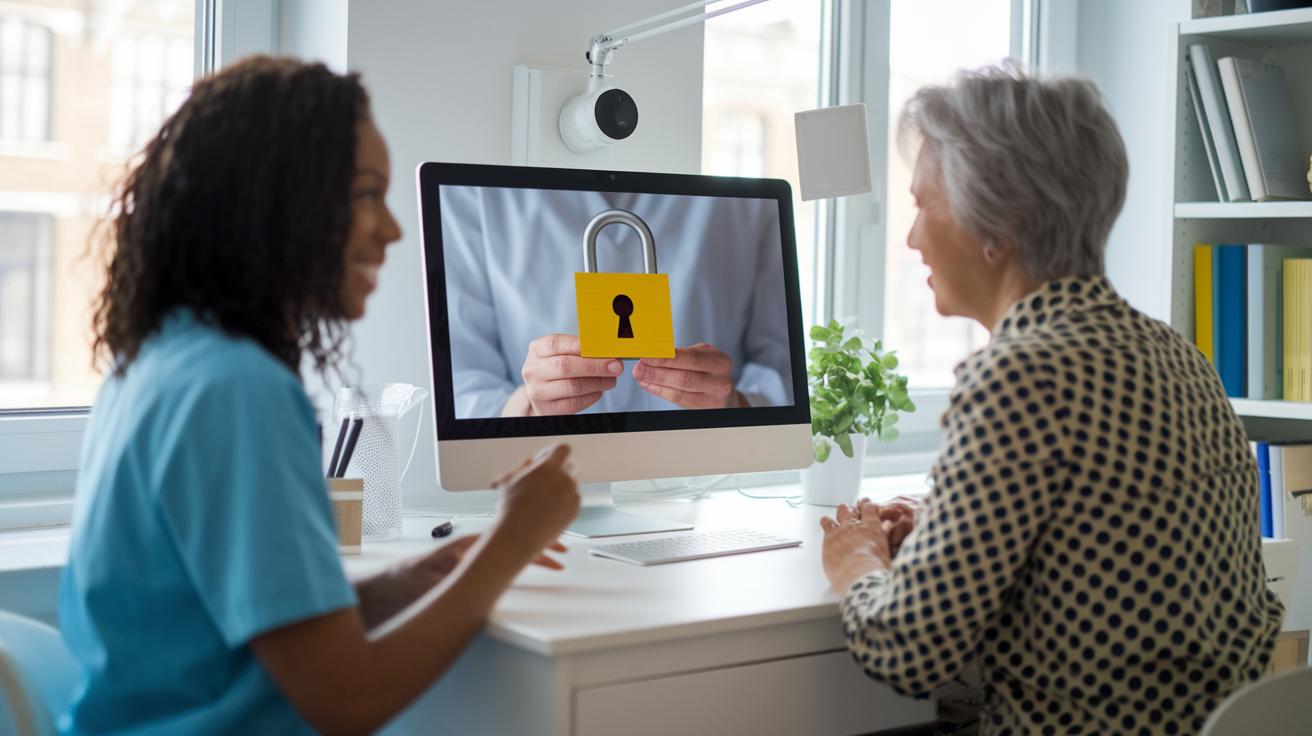
Clinics need to follow clear rules to keep patient data safe during video appointments. They stick to laws like HIPAA in the US and GDPR in the EU, which are there to protect private information. Every video call, audio message, or text is secured with end-to-end encryption, and patient forms are stored safely when not in use. This helps build trust because every interaction stays private.
Clinics also follow trusted guidelines from groups like AHRQ and AAFP. They use simple checks, like confirming the person on the call is really the patient, and they keep a record to show that the patient agreed to receive care remotely. They even log every session to add an extra layer of accountability.
There are also strong technical measures in place. Secure two-way texting complies with HIPAA and lets patients quickly connect without risking their privacy. And role-based access controls make sure only the right staff members see sensitive data. Together, these steps create a safe, encrypted setup for remote healthcare that protects patient information during every video call.
By combining trusted professional practices with strong encryption and legal compliance, clinics create a secure way to connect that safeguards both privacy and quality care.
Best Practices for Conducting Video Consultations in Clinics
Set up a safe, professional space for your video visits. Pick a quiet room with a plain background and a camera at eye level. Do a quick test call with a colleague to make sure your camera, microphone, and internet are working right.
It’s a good idea to ask the patient if they’re in a private spot. For instance, you might say, "Are you in a private space?" Keep a two-way video connection and have an audio backup in case the video lags.
Keep your session running smoothly by watching a virtual waiting room and sharing your screen when needed. Here are the basics:
- Room setup: proper lighting, eye-level camera, and minimal noise
- Privacy check: confirm the patient’s identity at the start
- Session controls: manage the waiting room and screen sharing
- Troubleshooting: perform pre-session tests and a staff test call
| Area | Practice |
|---|---|
| Environment | Quiet room, stable background, proper lighting, eye-level camera |
| Privacy | Confirm patient identity and secure private space |
| Session Flow | Manage virtual waiting room and use screen sharing for clear communication |
| Troubleshooting | Run pre-session tests and conduct a staff check call |
Post-Consultation Tasks: Documentation, Billing, and Follow-Up

Right after your session, quickly add your notes into your EHR using a structured DAP note template. For example, jot down something like "Patient noted mild dizziness; instructed to monitor symptoms" as if you were checking items off a list.
Next, streamline your billing by automatically creating invoices with Stripe or your in-system gateway. Keep track of each payment so every appointment links to its invoice seamlessly.
Then, schedule the next visit right away and send a detailed visit summary along with a satisfaction survey via secure messaging. A friendly note might say, "Thank you for your time today, please review your visit summary and let us know how you felt about the session."
Finally, review important details like session length, no-show counts, and billing status. This regular check helps fine-tune your video consultation process while keeping a clear record of every encounter.
Monitoring and Optimizing the Video Consultation Workflow
Performance dashboards let you track important numbers like average session time, patient happiness, and platform stability. They show what's working and hint at what might need a little change. For instance, if you notice a small dip in session time on certain days, it might be a good moment to review staff schedules.
Add practice analytics tools that pull data from several sources. These tools help you measure your clinic’s performance against benchmarks from groups like AHRQ and AAFP. You might even see a note like, "After checking our dashboard, we noticed shorter wait times and happier patient feedback." It’s almost like your data is giving you a friendly nudge.
Ask both your staff and patients for feedback through quick surveys. Their straightforward responses can uncover any scheduling or technical hiccups that might be slowing things down.
Once you have the data, adjust reminder timings, update your software tools, and fine-tune staffing as usage patterns shift. Keeping regular tabs on these details means every video consultation gets better over time.
| Metric | Focus |
|---|---|
| Average Session Length | Efficiency |
| Patient Satisfaction | Quality of Care |
| Platform Uptime | Reliability |
Final Words
In the action, we walked through setting up a telehealth profile, arranging the ideal hardware environment, and managing automated reminders. We covered scheduling, secure patient intake, and compliance checks, plus essential post-consultation tasks like documentation and billing insights.
Every step helps clinics deliver a smooth video consultation workflow for clinics and supports trusted digital healthcare.
It’s amazing how these simple, clear actions can transform care into a more connected and efficient experience. Enjoy making your next video consultation session seamless and stress-free.
FAQ
What is the telehealth/telemedicine workflow and can you provide an example of a clinical workflow?
The telehealth workflow outlines steps from patient registration to a secure video consultation, immediate documentation in an electronic record, and automated billing. This clear process ensures smooth and compliant care delivery.
How does a provider assess privacy during a telehealth session?
A provider assesses privacy by checking for encrypted connections, secure access controls, and proper patient consent while making sure the session takes place in a private environment.
How is billing for video visits handled?
Billing for video visits uses automated invoice generation, secure payment tracking through integrated platforms, and detailed session records to match services provided for accurate reimbursement.
What is medical telehealth and which nursing services can be provided through telehealth?
Medical telehealth uses secure digital tools to deliver care remotely. Nursing services include patient triage, remote monitoring, medication guidance, and follow-up care—all performed through digital communication.
Which method does not use current guidelines to determine the correct code?
A method that ignores updated coding criteria and relies solely on outdated or arbitrary processes does not use current guidelines, risking inaccuracies in billing and noncompliance with standards.
How can one implement a telehealth program?
Implementing a telehealth program involves setting up secure hardware and software, integrating with existing records, training staff on new processes, and establishing clear steps from scheduling to post-visit follow-up.
How do you conduct a video consultation or virtual consultation?
Conducting a video consultation starts with pre-visit scheduling and digital patient intake, followed by a secure, live session with a test call, then immediate documentation and automated follow-up reminders.