


Ever get annoyed by fuzzy videos or muffled sound during your calls? I know the feeling. Imagine upgrading your camera or microphone just a little bit, so your meetings feel almost like you're sitting together in the same room.
A handful of smart tech tweaks can turn your call into a clear, engaging chat. First, try a small investment in better gear or adjust your software settings. This can make a real difference, like swapping out a dull light for the soft glow of your phone screen on a calm evening.
In this guide, we'll share simple, cost-effective ideas to help you get clearer visuals and crisp audio. Small changes, big improvements – it's really that easy!
Core Hardware & Software Upgrades for Improving Video and Audio Quality
Upgrading your tech for video calls doesn’t have to cost a fortune. A few smart tweaks can really turn your consultation sessions into clear, face-to-face-like chats. With an investment of around $100 to $300 per device, you can see a real boost in video sharpness and sound clarity without overspending.
The right mix of mid-range gear and handy software features can make your virtual meetings look and sound much better. It means you get crisp visuals for showing patients, easy-to-follow conversations during consultations, and smoother internal training sessions. Pretty cool, right?
Here are a few key components to consider for your setup:
- Mid-range webcams or DSLR/1080p+ cameras that shoot at 30–60 fps. (For more details, have a look at the setup tips for a successful video consultation appointment.)
- USB condenser or lavalier microphones with at least 16 bit/48 kHz to capture natural, crisp audio.
- Audio mixers or USB audio interfaces to manage multiple sound inputs and help you control the overall audio quality.
- Pop filters and shock mounts that keep out wind or other movements, so your voice stays clear.
- Built-in software features like gain control and AGC in platforms like Zoom or Teams, which automatically adjust audio levels.
- GPU acceleration enabled in settings to offer smoother video rendering.
- Intelligent system diagnostics that monitor how your devices are performing, ensuring reliable sessions every time.
Each component works together to give you that professional, reliable edge in every consultation.
Environmental & Software Configuration to Boost Video and Audio Performance

Making small adjustments to your space and tweaking your software settings can turn your video consultations into clear and engaging conversations. A tidy room combined with smart app settings means your meetings will feel easier to follow and more genuine.
Lighting makes a big difference. Try using a simple three-light setup with a key light in front at a 45° angle, a fill light on the other side to ease shadows, and a back light to gently separate you from your background. Alternatively, a 2,500–5,500 K LED panel placed at the right angle can give you that natural, even glow.
Background and sound also play a key role. Choose a plain background and think about softening echoes with simple materials like foam panels or heavy drapes. Even a solid, light-colored wall can keep things clean and help you focus better.
Don’t forget your software settings. In your video app, turn on HD video and pick options like “Original Sound” on Teams with noise suppression set to a medium level. A little tip: close any other apps that could cause hiccups and enable hardware acceleration. These basic tweaks can really boost your performance.
Network & Connectivity Best Practices for Smooth Consultation Video and Audio
Having a solid network setup is super important when every video frame and sound matters. A wired Ethernet connection with Cat 5e or Cat 6 cables keeps delay really low (under 50 ms) and makes sure your upload speed stays above 5 Mbps. This means your video and audio are clear and in sync, just like a smooth conversation.
Global network monitoring paired with small tweaks can really transform your consultations into easy, engaging chats. Have you ever noticed how a few simple adjustments can boost your call quality?
Here are five friendly tips to keep in mind:
- Use a wired Ethernet connection with Cat 5e or Cat 6 cables for steady, low-delay performance.
- Turn on Quality of Service (QoS) on your router to help important conference data get priority.
- Check your connection speed each week to be sure it stays above the recommended 5 Mbps upload.
- Disable extra VPN features that might add delays.
- Place your router in the center of your space or use a mesh Wi-Fi extender within 15 feet to get a strong, even signal.
Following these steps will help reduce lag, jitter, and dropped frames. Your consultations will be smooth and reliable, making every call feel like a friendly, uninterrupted conversation.
Audio Delivery Techniques to Refine Consultation Sound Quality
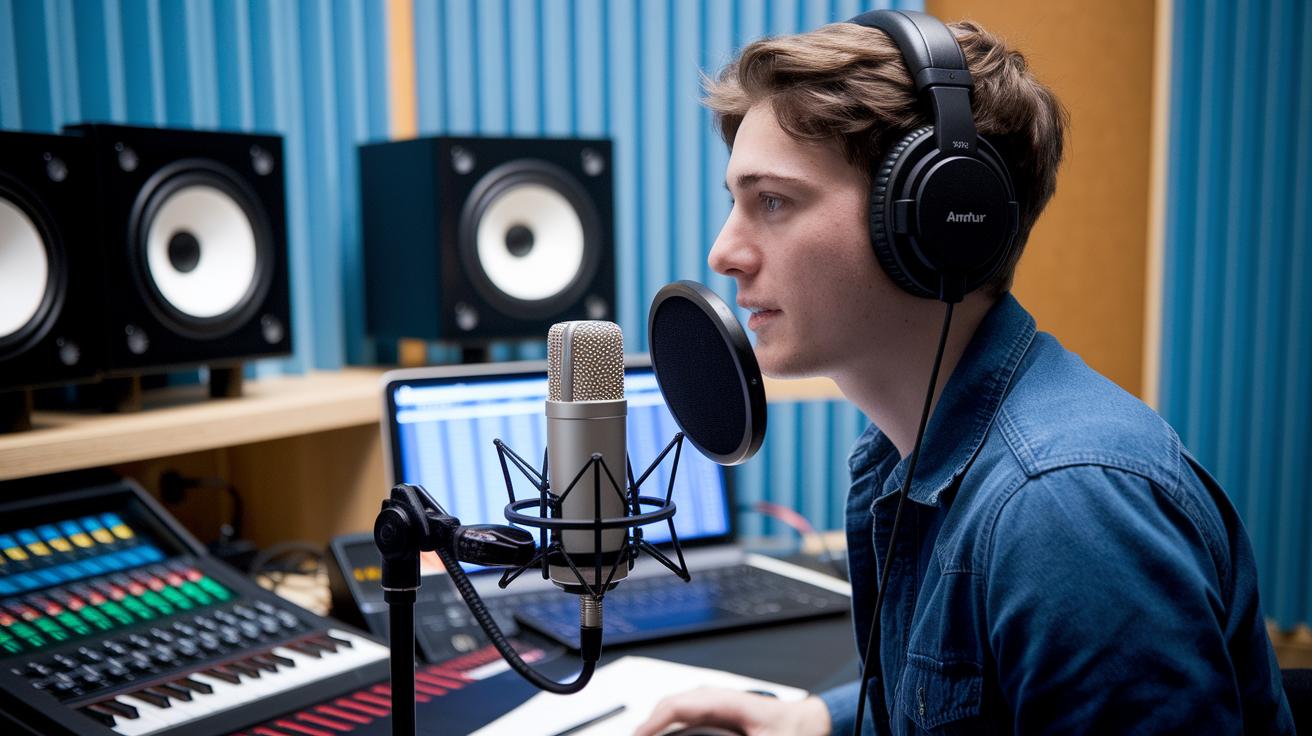
Getting your audio perfect can really change the game during consultation sessions. Clear sound makes your message easy to follow and helps build trust with your listeners. Think of tweaking your audio settings like tuning up your favorite instrument. Just a few smart adjustments with your microphone, filters, and EQ can really create a crisp, natural listening experience that connects.
When you set up your device, start by positioning a cardioid microphone about 6 to 12 inches away from the speaker. This close setup cuts down on background noise and captures a warm tone. Then, adjust the gain so that your highest levels hit -12 dB in your conferencing app. This way, your voice stays clear without any clipping. Using a high-pass filter at 80 Hz helps clear out low rumbles or hums that might distract your audience. And turning on a noise gate with a -40 dB threshold will reduce any unwanted background sounds when you're not speaking.
Next, fine-tune your audio with digital EQ adjustments. Boost frequencies between 3 and 5 kHz to add clarity and presence to your voice, while cutting the 200 to 300 Hz range removes any muddiness. Finally, add a little de-esser (about 10 to 15 percent) to smooth out any harsh, sibilant sounds.
Some quick tips:
- Place the cardioid mic 6 to 12 inches from the speaker for the best capture.
- Set the gain so that peak levels reach -12 dB.
- Use a high-pass filter set at 80 Hz.
- Turn on a noise gate with a -40 dB threshold.
- Adjust the digital EQ by boosting 3 to 5 kHz and lowering 200 to 300 Hz.
- Finally, add 10 to 15 percent de-esser to smooth out sibilance.
Testing, Troubleshooting & Team Training for Consistent Video and Audio Excellence
Having a solid quality check can really change your consultation sessions. Start with a simple checklist that covers your camera angle, mic level, lighting, and network status. A quick test call once a week lets you see if everything, from the video framing to the sound, is working just right. This regular check helps you catch small problems early so you can fix them before they become a hassle.
Team training is just as important. Take some time to go over the platform’s features with your staff. Show them how to use mute and unmute settings and what to do if they lose connection. Make sure everyone knows how to handle any issues if something goes wrong during a test call. These short training sessions help build confidence and keep meetings running smoothly. When your team is comfortable with troubleshooting, minor glitches can be sorted out quickly, and ongoing issues will be easier to spot.
It also helps to choose a secure and reliable platform. Following the best practices for secure video calls in telemedicine keeps your meetings both safe and connected. A focused approach to software troubleshooting along with regular, hands-on training turns everyday consultations into smooth, worry-free meetings.
| Checkpoint | Tool/Method | Frequency |
|---|---|---|
| Camera & Framing | Test Call | Daily |
| Audio Levels | Sound Meter App | Before Each Session |
| Lighting Balance | Visual Inspection | Weekly |
| Network Speed | Speedtest.net | Weekly |
| Platform Updates | Admin Console | Monthly |
Final Words
In the action, we reviewed how the right camera setup, audio input, and environmental tweaks can make your consultations sharper and clearer. Small hardware adjustments, smart software settings, and network practices all work together for a smooth experience.
Regular testing and hands-on troubleshooting keep every session on track. With simple upgrades and a clear plan, you can enjoy the benefits of improving video and audio quality in consultation sessions. The future looks bright with secure and clear digital healthcare at your fingertips.
FAQ
What do virtual consultations mean and what benefits do they offer?
Virtual consultations refer to remote meetings with healthcare professionals using digital technology. They offer convenience, quicker access to care, and reduced travel costs, as supported by studies like the VOCAL research and various online research papers.
How do virtual consultations impact specialties such as plastic surgery and primary care?
Studies show that virtual consultations in fields like plastic surgery and primary care can improve access and patient satisfaction. They offer cost-effective solutions but must account for clinical nuances unique to each specialty for optimal outcomes.
What is meant by a virtual consultation doctor?
A virtual consultation doctor is a healthcare professional who conducts appointments remotely via video or phone calls. They provide medical advice and follow-ups without in-person visits, making care more accessible and efficient.
What are some limitations of remote consultations?
Limitations of remote consultations include potential issues like lack of physical examination, technical glitches, and challenges in establishing personal rapport. These factors may impact diagnosis and overall care quality in certain cases.
How can I ensure good audio and video quality during a virtual meeting?
Good audio and video quality during meetings can be achieved by using quality cameras and microphones, checking device settings, and ensuring a stable network connection, along with adjusting in-app video and sound options for optimal performance.
What are the 5 C’s of consultation?
The 5 C’s of consultation highlight critical areas: Clear communication, Connection, Competence, Care, and Confidence. These guide effective interactions by ensuring that healthcare providers meet both technical and personal needs during sessions.
How can I enhance or fix poor sound quality in videos?
Enhancing or fixing sound quality involves optimizing microphone placement, adjusting gain settings, applying filters like high-pass and noise gate, and using digital EQ settings to boost clarity and reduce background noise for better audio delivery.